1
Upload Your File
Choose a supported image or video that you own or have permission to edit.
🚀 Sponsored: Need an automated online shop? Create your digital storefront in 60 seconds with ShopLink.vi!
Mark an unwanted object, text overlay, date stamp, logo, or authorized watermark and let Sharpixa rebuild the selected area using nearby visible pixels and textures.
Select a file and follow the controls below.
Drop your image here to mark and remove an unwanted object, text, logo, or authorized watermark.
JPG · JPEG · PNG · WEBP — maximum 20MB
Smaller unwanted areas surrounded by repeatable colors or textures generally produce cleaner results than large selections covering unique details.
Only upload and edit files you own or have permission to modify. Do not remove copyright, ownership, or attribution marks from protected material without authorization.

ShopLink.vi turns messy chats into structured sales. Customers browse your digital catalog and check out seamlessly, automatically generating a clean, organized order receipt sent directly to your WhatsApp DM. No more manual calculations or chaotic messaging threads.
Sign Up Free →Clean a selected area in four straightforward steps.
Choose a supported image or video that you own or have permission to edit.
Zoom in and brush precisely over the object, text, logo, timestamp, or authorized watermark.
Sharpixa samples nearby clean pixels and textures to fill the marked region.
Compare the result with the original and save the processed file.
Processing is designed to run inside your browser. Only edit files you own or have permission to modify.
Drag each slider to compare the original sample with its cleaned version. Results vary according to the size, position, and complexity of the selected area.
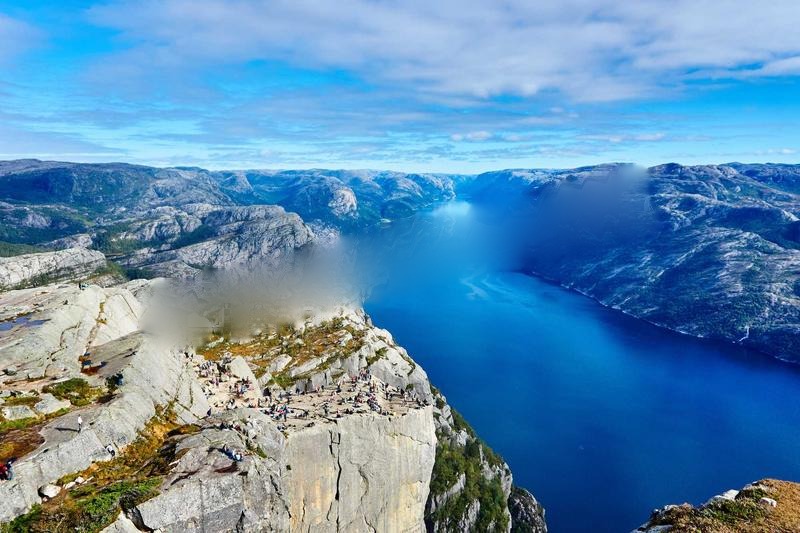
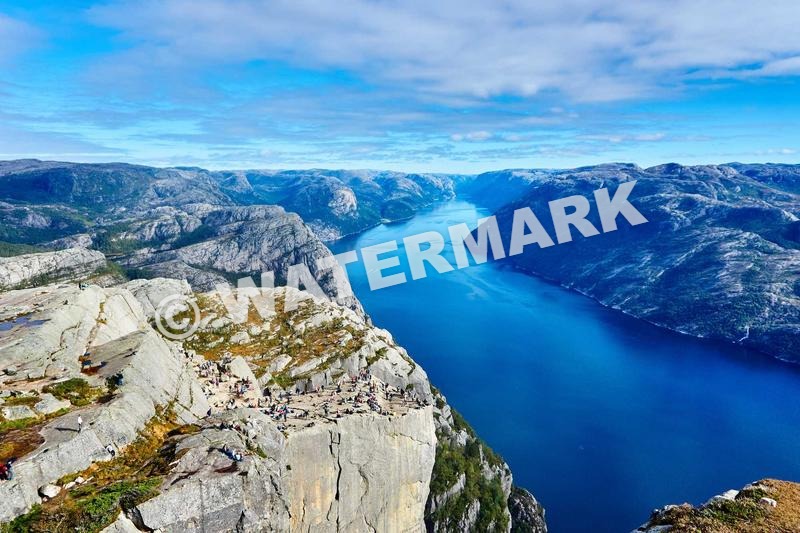
Loading comparison...
A compact text overlay removed from a repeatable natural background.
Drag the handle or use the arrow keys.


Loading comparison...
Text removed from an urban image using nearby visible textures.
Drag the handle or use the arrow keys.


Loading comparison...
A marked portrait area cleaned while retaining the surrounding image.
Drag the handle or use the arrow keys.


Loading comparison...
A small timestamp removed from a relatively simple image area.
Drag the handle or use the arrow keys.
Results depend on the source file
Mark the unwanted area and let Sharpixa rebuild it using nearby visible pixels and textures. Complex edges, large missing areas, compression, motion, and low-resolution input can affect the final quality.
Brush, refine, process, compare, and export without creating an account.
Mark unwanted objects, text, date stamps, logos, or authorized watermarks with a precise brush.
Control brush size, hardness, zoom, mask opacity, and erasing for more accurate selections.
Sharpixa samples nearby clean pixels and textures to rebuild the selected region.
Clean images or remove stationary overlays from supported video clips.
Choose exactly which area should be processed rather than modifying the entire file.
Use the tool only on files you own or have permission to modify.
Preview the processed result and save it directly from your browser.
Start editing without creating an account or providing personal information.
Object removal produces the cleanest results when the selected area is surrounded by repeatable colors and textures.
Images and compatible videos can use the manual selection workflow.
Maximum file size: 20MB
JPG file
JPEG file
PNG file
WEBP file
Maximum file size: 50MB
MP4 file
MOV file
M4V file
WEBM file
MKV file
MPEG-TS file
Sharpixa processes selected files inside the browser. The application may download scripts, model files, advertising resources, and analytics resources according to its Privacy Policy.
Image support is consistent across modern browsers. Video processing depends on the codecs available in your browser and operating system.
Renaming a file extension does not convert its format. Upload a valid file produced in one of the formats shown above.
Important details about quality, supported files, privacy, and responsible use.
You can mark unwanted objects, text, logos, date stamps, distractions, or authorized watermarks. Results are strongest when the selected area is small and surrounded by repeatable textures.
Important quality note
Smaller selections surrounded by repeatable textures generally produce cleaner object-removal results.